Spin our free, no sign-up and unlimited decision wheel. Edit outcomes, spin the wheel, and a winner will emerge!
Customize Portion
Tool Documentation
Spinning the Wheel
To spin the wheel, click/tap the black section in the middle, with the text "SPIN" laid across it. The spin button looks like this:

After an outcome is spun, a menu will pop up, which tells you the outcome and gives you several options.
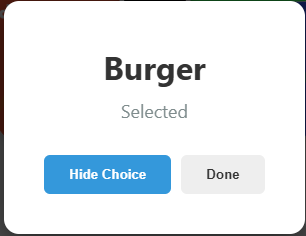
You can hide the selected choice (this does not delete the choice; it temporarily disables it) or you can close the menu by clicking the done buttton.
Tabs
There are three tabs in this tool, each built for a specific purpose. This section covers what each does.
Imput Tab
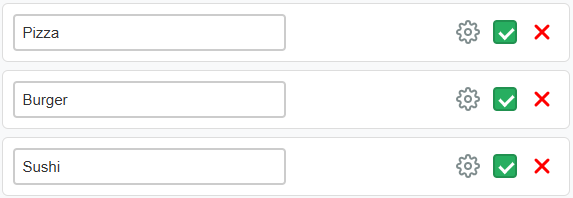
Take a look at the imput list, which looks like this when the tool is opened.
Adding an Imput
Click the blue button with the + icon to add a blank imput.

Temporarily Disabling/ an Imput
To temporarily disable an imput, click the green check mark icon of one of the imputs.

When you want to enable the imput, click the green check mark again.
Deleting an Imput
Deleting an imput is straightforward. Simply click the red x icon of one of the imput you'd like to delete.

Shuffling Imputs
Click the gray button with a shuffle icon to randomly shuffle the order of inputs.

Weights
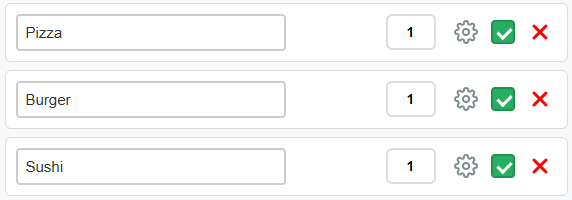
Weights determine how much space a section takes up on the wheel. To enable this feature, click the enable weights checkbox.

This adds an extra imput box to the tool, in between the box for the imput text and the three icons (gear, checkbox, and x). This addition makes the imput list look like this:
Imput Settings
Clicking in the gray text box will allow you to edit what the text for that input is.
To access more settings for how each section of the wheel looks like, click the gear icon.

Clicking the gear will open a menu with a variety of options for that section.
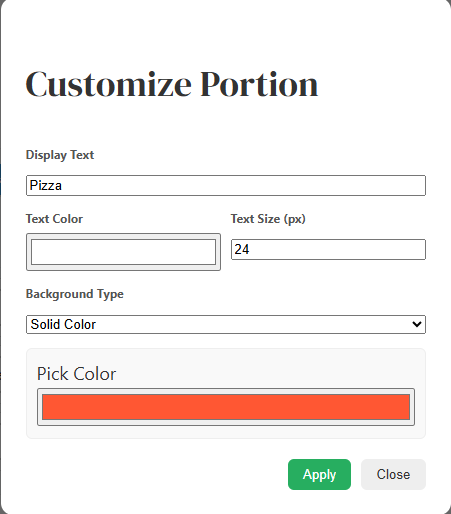
You can change the display text from this menu as well. You can also change the text color, text size, and background type.
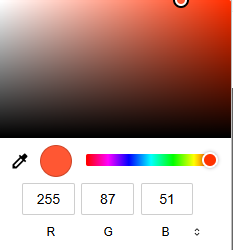
There is also a background type dropdown. If you click the solid color option, a red-filled rectangle will appear. When clicked, this will open a color picker.
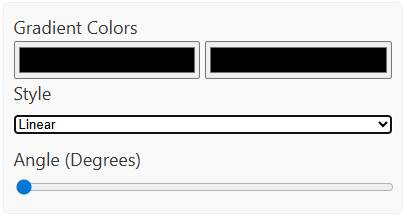
If you click the gradient option, some things will appear: two rectangles that open color pickers when clicked, a style dropdown, and if linear is selected in the style dropdown, a angle (in degrees) input box.
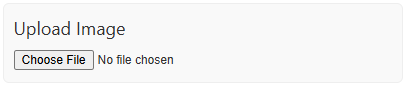
If you click the image option, an upload image button will appear.