
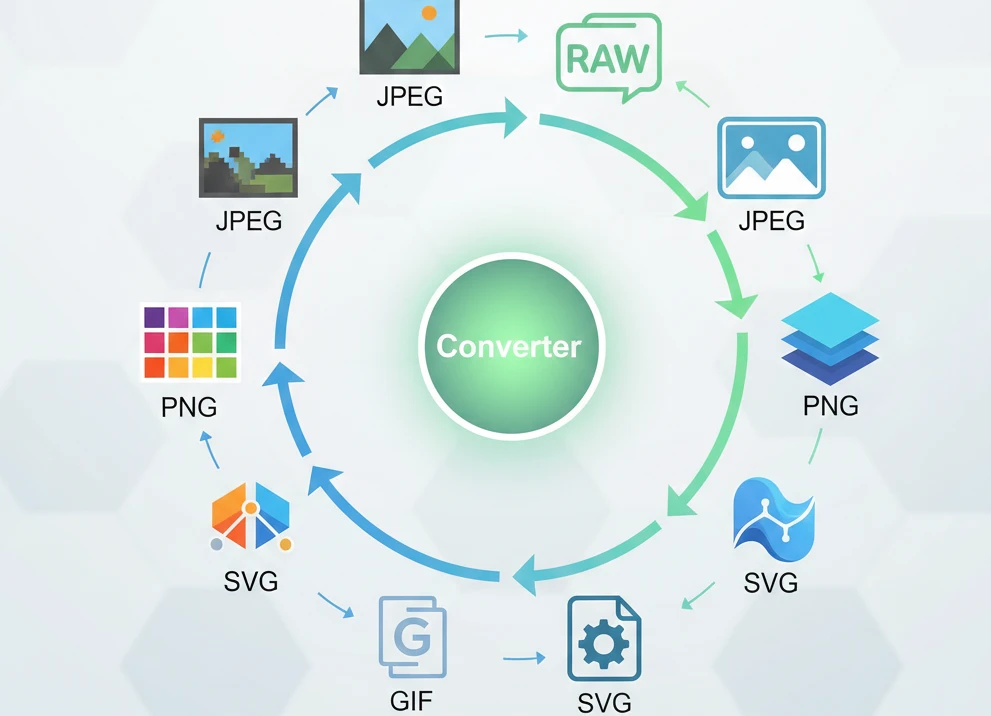
Images are the lifeblood of the internet. Whether you are building a website, posting on social media, or sending a school project, you will eventually run into a file type problem. Maybe your client needs a JPEG, but you have a PNG. Maybe your website requires an SVG for a logo, but you only have a standard photo. This is where image converters come in.
With hundreds of tools available online, it can be hard to know which ones are safe and which ones work best. Some are full of ads, while others require expensive software subscriptions or confusing registrations. To help you choose, we have tested and reviewed the 9 best image type converters available today. I’ve focused on tools that are easy to use, respect your privacy, and get the job done quickly.
Here is our list of the top tools to handle your image conversion needs.
1. Everything Articles Image Tools
Everything Articles has quickly become a favorite resource for simple, effective digital tools. Our suite of over 35+ image converters—including a number bulk image converters—offers a streamlined experience that removes all the clutter found on other sites. Unlike many competitors that try to do too much, these tools are focused on doing one thing perfectly: converting your images without hassle. The interface is clean and modern, making it impossible to get lost or confused. Our image conversion tools can be found
What sets Everything Articles apart is its commitment to privacy and speed. Most online converters ask you to upload your files to their servers, which can be a security risk for personal or business documents. Everything Articles uses advanced browser-based technology to process your images directly on your device. This means your files never leave your computer. You get the convenience of an online tool with the security of offline software. It is completely free, requires no sign-up, and has no limits on how many files you can convert.
Strengths:
- 100% Private: Processing happens on your device; files are never uploaded to a cloud server.
- No Limits: Convert as many images as you want without hitting a paywall.
- Zero Installation: No software or plugins to download.
- User-Friendly: Simple drag-and-drop interface with instant results.
2. CloudConvert
CloudConvert is one of the most famous file conversion tools on the web. It is known as the “Swiss Army Knife” of converters because it handles almost every file type imaginable. It doesn’t just convert images; it can also handle documents, audio files, and videos. If you need to turn a Photoshop file (PSD) into a JPG or a RAW camera image into a PNG, CloudConvert handles it with ease. The site looks professional and offers many settings for advanced users who want to tweak the quality or size of their output.
However, because it is so powerful, it can sometimes feel a bit complicated for someone who just wants a quick fix. While it has a generous free tier, it is not unlimited. If you need to convert hundreds of files a day, you might run into a daily limit unless you pay for a subscription. Additionally, files are uploaded to their servers for processing, though they have a strong privacy policy that promises to delete files after conversion.
Strengths:
- Versatile: Supports over 200 different file formats.
- High Quality: Excellent preservation of image detail during conversion.
- Custom Settings: Allows you to change resolution and quality before converting.
- Cloud Integration: Connects directly to Google Drive and Dropbox.
3. Zamzar
Zamzar has been around since 2006, making it one of the oldest and most trusted converters online. Its interface is very simple, following a “1-2-3” step process that anyone can understand. You simply upload your file, choose the format you want, and click convert. It is a reliable tool that rarely fails and works on almost any device, including older computers and tablets.
The main downside to Zamzar is speed and limits. For free users, the conversion speed can be a bit slow compared to newer tools, and there is a strict limit on the file size you can upload (usually around 50MB). You also have a limited number of conversions per day. While it is great for occasional use, power users might find the waiting times and limits frustrating without a paid plan.
Strengths:
- Reliability: A long history of dependable service.
- Wide Support: Handles obscure and old file formats that other tools miss.
- Email Option: Can email you the converted file if the process takes a long time.
- Simple Interface: Very easy to navigate for beginners.
4. Squoosh (by Google)
Squoosh is a fantastic web-based image editor and converter developed by the Google Chrome Labs team. It is designed primarily for compressing images to make them smaller for websites, but it also works as an excellent converter. You can drop an image in and instantly see a “before and after” slider. This lets you see exactly how much quality you are losing (or keeping) when you switch formats like WebP, JPEG, or PNG.
Like “Everything Articles,” Squoosh runs entirely in your browser, offering great privacy. However, it is a manual tool. You have to convert one image at a time and tweak the settings yourself. It does not support batch processing (converting many files at once), which makes it less ideal if you have a whole folder of photos to change. But for optimizing a single image for a website, it is hard to beat.
Strengths:
- Visual Comparison: See the quality difference in real-time with a slider.
- Advanced Compression: Makes file sizes incredibly small without ruining the look.
- Offline Capable: Can work even if you lose internet connection after loading the page.
- Developer Friendly: Great for making web-optimized images like WebP.
5. Convertio
Convertio offers a modern and sleek design that makes file conversion feel high-tech. Like CloudConvert, it supports a massive range of file types beyond just images, including fonts and ebooks. One of its best features is its ability to handle “OCR” (Optical Character Recognition), which can pull text out of scanned images and PDFs, though this is often a paid feature.
For standard image conversion, Convertio is fast and effective. You can upload files from your computer, Dropbox, or Google Drive. The free version allows you to convert files up to 100MB in size. While this is enough for most images, it might limit you if you are working with very high-resolution photography or graphic design source files. They also limit the number of simultaneous conversions you can run for free.
Strengths:
- Modern Design: Beautiful interface that is pleasing to use.
- Text Recognition: Can extract text from images (OCR).
- Browser Extension: Offers a Chrome extension for quick access.
- Multiple Sources: Upload directly from cloud storage accounts.
6. FreeConvert
As the name suggests, FreeConvert focuses on providing a free and accessible service. It allows for larger file sizes than many of its competitors—often up to 1GB for free users—which is a huge plus for high-quality video or massive image archives. The site provides advanced options, allowing you to resize, rotate, or strip metadata from images during the conversion process.
The trade-off for these generous limits is usually ads. The site is supported by advertising, which can make the page look a bit cluttered compared to cleaner tools like Everything Articles. Also, while the file size limit is high, the conversion speed can vary depending on how busy their servers are. Privacy-wise, files are uploaded to their servers but are protected with 256-bit encryption and deleted after a few hours.
Strengths:
- Large File Limits: Supports much bigger files than most free tools.
- Advanced Editing: Resize and rotate images while converting.
- Secure: Uses strong encryption for file transfers.
- Batch Processing: Allows you to convert multiple files at once.
7. Adobe Express (Online Converter)
Adobe is the company behind Photoshop, so it is no surprise they have a high-quality online converter. Adobe Express offers a free online tool specifically for converting simple formats like PNG to JPG or JPG to PNG. The quality is top-notch, ensuring your images look crisp and professional. Because it comes from Adobe, you know the color accuracy will be perfect.
The catch is that Adobe often requires you to sign in. While the tool is technically free, they usually ask you to create an Adobe account or log in with Google to download your final image. This adds an extra step that tools like Everything Articles and Zamzar do not require. It is a great choice if you already have an Adobe account, but might be annoying if you just want a quick download without handing over your email address.
Strengths:
- Trustworthy Brand: Industry-leading image processing technology.
- High Quality: Ensures colors and details are preserved perfectly.
- Integration: Connects easily if you use other Adobe products.
- Editing Tools: Access to basic filters and cropping after conversion.
8. TinyPNG / TinyJPG
TinyPNG is famous for its adorable panda mascot and its incredible ability to shrink file sizes. While it is primarily a compression tool, it effectively converts files in the process of saving them. If you upload a transparent PNG, it optimizes it expertly. If you need to save space on your phone or website, this is the industry standard for making files smaller.
However, it is a bit limited as a strictly “type converter.” You cannot easily tell it to turn a JPEG into a GIF or an SVG. It is strictly for optimizing JPEG and PNG files. If your goal is purely to change the file type without compressing it, this might not be the right tool. But if your goal is to make a website load faster, TinyPNG is essential.
Strengths:
- Best Compression: Drastically reduces file size with zero visible quality loss.
- Batch Upload: Drop up to 20 images at once.
- Plugin Availability: Has plugins for WordPress and Photoshop.
- Simple: Just drag and drop; the panda does the rest.
9. Online-Convert.com
Online-Convert.com is a powerhouse utility site. It looks a bit older than the modern designs of Convertio or Everything Articles, but it is packed with features. You can customize almost everything: color filters, DPI (dots per inch), and pixels. It is great for technical users who need a file to be exact specifications for printing or engineering software.
The downside is the interface. It is text-heavy and can be overwhelming for a casual user who just wants to swap a file format. It also relies on ads for the free version. While powerful, it lacks the “one-click” simplicity of the top contenders on this list.
Strengths:
- Deep Customization: Change DPI, pixels, and color settings.
- Device Presets: Convert images specifically for iPhone, Android, or tablets.
- Wide Format Support: Handles vector graphics and raster images well.
- Detailed Control: Great for technical requirements.
Comparison Table: Top Image Converters
To help you decide which tool is right for you, we have compared them based on the features that matter most: price, privacy, and ease of use.
| Image Converter | Free & Unlimited? | Privacy (Local Processing) | No Sign-Up Required? | Best For… |
|---|---|---|---|---|
| 1. Everything Articles | Yes | Yes (100% Private) | Yes | Speed, Privacy & Simplicity |
| 2. CloudConvert | Limited Daily | No (Cloud Upload) | Yes | Rare/Weird File Formats |
| 3. Zamzar | Limited Daily | No (Cloud Upload) | Yes | Reliability & Old Computers |
| 4. Squoosh | Yes | Yes (Local) | Yes | Visual Compression (One by one) |
| 5. Convertio | Limited Size | No (Cloud Upload) | Yes | Modern Interface & OCR |
| 6. FreeConvert | Yes (Ad-supported) | No (Cloud Upload) | Yes | Large Files (1GB+) |
| 7. Adobe Express | Yes | No (Cloud Upload) | No (Login Required) | Adobe Users & Quality |
| 8. TinyPNG | Yes (20 files) | No (Cloud Upload) | Yes | Compressing File Size |
| 9. Online-Convert | Yes (Ad-supported) | No (Cloud Upload) | Yes | Technical/Print Settings |
Conclusion
Choosing the right image converter depends on your needs. If you need to edit complex settings or convert a rare file type, tools like CloudConvert or Online-Convert are powerful options. However, for most users who simply need to change their PNG, SVG, or JPEG to any of those formats, for a website quickly and safely, Everything Articles Image Tools is the clear winner. It combines the best privacy features with an interface that anyone can use, free of charge and without limits.
Always remember to check the privacy policy of any tool you use, especially if you are working with personal photos. With browser-based tools like Everything Articles, you can rest easy knowing your files never leave your hands.